Author: admin


Commands to check spam in Ubuntu with Postfix
05/06/2017
 by admin
by admin

mailq Watch the mail queue
postfix -f Flush the mail queue
postsuper -d ALL To remove all mails from the queue
postsuper -d deferred deferred To remove all mails in the deferred queue
find /var/spool/postfix/deferred -type f | wc -l To know the number of messages sitting in the deferred queue
postcat -vq ID To view message content in queue with ID
qshape active Display number of emails being sent to each domain and how long they have been in the active queue
qshape deferred Display differed queue
tail -f /var/log/mail.log View the log in realtime
To check mail log for sent messages
cat /var/log/mail.log |grep -v "relay=local" |grep "relay=" |grep "status=sent"
To get statistics, install a script:
wget http://jimsun.linxnet.com/downloads/pflogsumm-1.1.1.tar.gz
tar -zxf pflogsumm-1.1.1.tar.gz
chown root:root pflogsumm-1.1.1
cd pflogsumm-1.1.1
cat /var/log/mail.log | ./pflogsumm.pl
You can move pflogsumm.pl to /usr/local/bin
To send a weekly report
Create /etc/cron.weekly/mailreport
#!/bin/sh

#

# mailreport cron weekly

MailSubject="Email report $(date +%d-%m-%Y)"

cat /var/log/mail.log | /usr/local/bin/pflogsumm.pl | /usr/bin/mailx -s "$MailSubject" your.mail@domain.com

exit 0
Change file permissions to read, execute
chown root:root /etc/cron.weekly/mailreport
chmod 755 /etc/cron.weekly/mailreport
Report today problems
pflogsumm -d today /var/log/mail.log --problems_first
Get permanent errors hard bounces
grep " dsn=5." /var/log/mail.log | grep -o -P " to=<(.+?)>" | sort | uniq -c
Get soft bounces
They start with 4…
grep " dsn=4." /var/log/mail.log | grep -o -P " to=<(.+?)>" | sort | uniq -c
To check user logins
grep "sasl_method=LOGIN" /var/log/mail.log
Clean Quick Access in Windows 10
15/03/2017
by admin
by admin
If you have problems with the entries in quick access (of the windows explorer) , you can clean the entries in these directories:
%AppData%\Microsoft\Windows\Recent\AutomaticDestinations
%AppData%\Microsoft\Windows\Recent\CustomDestinations
Pin any additional entries you want.
Opening Web-hyperlinked Microsoft Office documents in read-write mode
15/02/2017
by admin
by admin

Microsoft Office in a webdav or hyperlynked will open as read only. To change the default behavior and open as read-write:
Set OpenDocumentsReadWriteWhileBrowsing DWORD Value on a client machine under the key
 HKEY_CURRENT_USER\Software\Microsoft\Office\<version>\Common\Internet

Set the Value data to 1.
This does not address the issue of the server service file permissions.
Executing commands from PHP to the operating system
13/02/2017
by admin
by admin

The system() Function
The system function in PHP takes a string argument with the command to execute as well as any arguments you wish passed to that command. This function executes the specified command, and dumps any resulting text to the output stream (either the HTTP output in a web server situation, or the console if you are running PHP as a command line tool). The return of this function is the last line of output from the program, if it emits text output.
The exec() Function
The system function is quite useful and powerful, but one of the biggest problems with it is that all resulting text from the program goes directly to the output stream. There will be situations where you might like to format the resulting text and display it in some different way, or not display it at all.
For this, the exec function in PHP is perfectly adapted. Instead of automatically dumping all text generated by the program being executed to the output stream, it gives you the opportunity to put this text in an array returned in the second parameter to the function:
The shell_exec() Function
Most of the programs we have been executing thus far have been, more or less, real programs1. However, the environment in which Windows and Unix users operate is actually much richer than this. Windows users have the option of using the Windows Command Prompt program, cmd.exe This program is known as a command shell.
The passthru() Function
One fascinating function that PHP provides similar to those we have seen so far is the passthru function. This function, like the others, executes the program you tell it to. However, it then proceeds to immediately send the raw output from this program to the output stream with which PHP is currently working (i.e. either HTTP in a web server scenario, or the shell in a command line version of PHP).
The proc_open() Function and popen() function
proc_open() is similar to popen() but provides a much greater degree of control over the program execution. cmd is the command to be executed by the shell. descriptorspec is an indexed array where the key represents the descriptor number and the value represents how PHP will pass that descriptor to the child process. pipes will be set to an indexed array of file pointers that correspond to PHP’s end of any pipes that are created. The return value is a resource representing the process; you should free it using proc_close() when you are finished with it.
Windows Management console list
24/01/2017
by admin
by admin
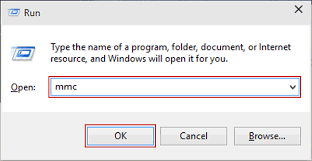
AD Domains and Trusts domain.msc
Active Directory Management admgmt.msc
AD Sites and Services dssite.msc
AD Users and Computers dsa.msc
ADSI Edit adsiedit.msc
Authorization manager azman.msc
Certification Authority Management certsrv.msc
Certificate Templates certtmpl.msc
Cluster Administrator cluadmin.exe
Computer Management compmgmt.msc
Component Services comexp.msc
Configure Your Server cys.exe
Device Manager devmgmt.msc
DHCP Management dhcpmgmt.msc
Disk Defragmenter dfrg.msc
Disk Manager diskmgmt.msc
Distributed File System dfsgui.msc
DNS Management dnsmgmt.msc
Event Viewer eventvwr.msc
Indexing Service Management ciadv.msc
IP Address Manage ipaddrmgmt.msc
Licensing Manager llsmgr.exe
Local Certificates Management certmgr.msc
Local Group Policy Editor gpedit.msc
Local Security Settings Manager secpol.msc
Local Users and Groups Manager lusrmgr.msc
Network Load balancing nlbmgr.exe
Performance Monitor perfmon.msc
PKI Viewer pkiview.msc
Public Key Management pkmgmt.msc
Quality of Service Control Management acssnap.msc
Remote Desktop tsmmc.msc
Remote Storage Administration rsadmin.msc
Removable Storage ntmsmgr.msc
Removable Storage Operator Requests ntmsoprq.msc
Routing and Remote Access Manager rrasmgmt.msc
Resultant Set of Policy rsop.msc
Schema management schmmgmt.msc
Services Management services.msc
Shared Folders fsmgmt.msc
SID Security Migration sidwalk.msc
Telephony Management tapimgmt.msc
Terminal Server Configuration tscc.msc
Terminal Server Licensing licmgr.exe
Terminal Server Manager tsadmin.exe
Teminal Services RDP MSTSC
Teminal Services RDP to Console mstsc /v:[server] /console
UDDI Services Managment uddi.msc
Windows Mangement Instumentation wmimgmt.msc
WINS Server manager winsmgmt.msc
PDFtk server
23/01/2017
by admin
by admin

Build PDFtk Server
You can compile PDFtk Server from its source code. PDFtk Server is known to compile and run on Debian, Ubuntu Linux, FreeBSD, Slackware Linux, SuSE, Solaris and HP-UX.
- Download and unpack: pdftk-2.02-src.zip (~2MB)
- Review the pdftk license information in: license_gpl_pdftk/readme.txt.
- Review the Makefile provided for your platform and confim that TOOLPATH and VERSUFF suit your installation of gcc/gcj/libgcj. If you run apropos gcc and it returns something like gcc-4.5, then set VERSUFF to -4.5. The TOOLPATH probably doesn’t need set.
- Change into the pdftk sub-directory,
- run make -f Makefile.Debian (substitute your platform’s Makefile filename)
We have built pdftk using gcc/gcj/libgcj versions 3.4.5, 4.4.1, 4.5.0 and 4.6.3. Pdftk 1.4x fails to build on gcc 3.3.5 due to missing libgcj features. If you are using gcc 3.3 or older, try building pdftk 1.12 instead.
https://www.pdflabs.com/
Local download: pdftk-2.02-src.zip
Useful terminal commands in Ubuntu
23/01/2017
by admin
by admin

To install the remaining CLI software, download the installation script install-additional-cli-software.sh, open your terminal, and execute it: bash install-cli-software.sh.
1. ESSENTIAL COMMANDS
- Navigation:
pwd,ls,cd folder(folders are case sensitive!),cd ... - File manipulation:
cat,cp,ln,mkdir,mv,rm,rmdir,touch. - Help:
man terminal_command. - Permissions:
chgrp,chmod,chown,su,sudo. - Search:
find. - Text editors:
ed,nano,vi,vim. - Text file visualization:
head,less,more,tail. - Install a package:
sudo apt-get install package. - Uninstall a package:
sudo apt-get purge package. - Remove packages that are no longer needed:
sudo apt-get autoremove.
2. BASH SHORTCUTS
- Autocomplete files, folders, commands, packages, etc.:
Tab. - List all available files, folders, commands, packages, etc.:
Tab+Tab. - Go to previous command:
↑, orCtrl+P. - Go to next command:
↓, orCtrl+N. - Search through previously used commands:
Ctrl+R. - Interrupt whatever you are running:
Ctrl+C.
2. BASIC COMMANDS
- Compare files line by line:
colordiff,diff,vimdiff,wdiff. - List files in databases that match a pattern:
locate,sudo updatedb. - Network interface:
ifconfig. - Report disk space usage:
df -H,du -hs folder. - OpenSSH SSH client with X11 forwarding:
ssh user@server -X. - Print lines matching a pattern from a text file:
grep. - Print newline, word, and byte counts for each file:
wc. - Secure copy (remote file copy program):
scp. - Show current processes:
htop,ps,top.
3. SCREEN COMMANDS
- Create a screen session:
screen. - Detach from the current screen session:
Ctrl+AthenD. - List the screen session identification strings:
screen -ls. - Reattach to a screen session:
screen -r session_id_string. - Terminate the current screen session:
exit, orCtrl+Athen:quit. - Scroll up/down during session:
Ctrl+AthenEscthen↑/↓/PgUp/PgDn.
4. OTHER COMMANDS
- Extract an ISO file:
7z x filename.iso. - Report faked system time to programs:
faketime. - Retrieves files from the web:
wget. - Print shared library dependencies:
ldd executable_filename. - Make symbolic links:
ln -s input_filename output_link_name. - List block devices:
lsblk. - Format USB stick as VFAT:
sudo mkfs.vfat -I /dev/sdx -n NAME && sync. - Restore disk from image:
sudo dd bs=1M if=im.iso of=/dev/sdx && sync.
5. FFMPEG COMMANDS
- Convert image to 5 sec. video:
ffmpeg -loop 1 -i 01.png -t 5 out.mp4. - 15 images to 30 Hz 5 sec. video:
ffmpeg -r 3 -i %03d.png -r 30 out.mp4. - Resize video to 720p:
ffmpeg -i input.webm -s 1280x720 output.webm. - Fade in the first 25 frames and fade out the last 25 frames of a 1000-frame video:
ffmpeg -i in.mp4 -vf "fade=in:0:25, fade=out:975:25" out.mp4. - Concatenate videos:
ffmpeg -f concat -i mylist.txt -c copy out.mp4.
6. SVN COMMANDS
- Create new repository:
svnadmin create repository_name. - Checkout:
svn co svn+ssh://user@server/path/to/repository. - Update working copy:
svn update. - Get status of current copy:
svn status. - Add all items recursively:
svn add *. - Add an item (if folder, adds recursively):
svn add item_name. - Delete an item (if folder, deletes recursively):
svn delete item_name. - Commit with log message:
svn commit -m 'message'.
7. FIND EXAMPLES
- Run files recursively in current dir.:
find . -type f -exec file '{}' \;. - Delete all .svn folders:
find . -iname .svn -prune -exec rm -r '{}' \;. - Copy all png files to png:
find ./ -name *.png -exec cp '{}' ./png \;.
8. PDFTK EXAMPLES
- Join all PDF files into a new PDF file:
pdftk *.pdf cat output out.pdf. - Join 3 PDF files:
pdftk in1.pdf in2.pdf in3.pdf cat output out.pdf. - Extract pages from a PDF:
pdftk in.pdf cat 1 25-35 end output out.pdf.
http://milq.github.io/useful-terminal-commands-ubuntu-debian
Manuel Ignacio López Quintero
Byobu
23/01/2017
by admin
by admin

It allows for the execution of multiple shells in one terminal. Byobu now includes an enhanced profiles, convenient keybindings, configuration utilities, and toggle-able system status notifications.
Invoke it simply with:
byobu
Now bring up the configuration menu. By default this is done by pressing the F9 key. This will allow you to:
-
View the Help menu
-
Change Byobu’s background color
-
Change Byobu’s foreground color
-
Toggle status notifications
-
Change the key binding set
-
Change the escape sequence
-
Create new windows
-
Manage the default windows
-
Byobu currently does not launch at login (toggle on)
The key bindings determine such things as the escape sequence, new window, change window, etc. There are two key binding sets to choose from f-keys and screen-escape-keys. If you wish to use the original key bindings choose the none set.
byobu provides a menu which displays the Ubuntu release, processor information, memory information, and the time and date. The effect is similar to a desktop menu.
Using the “Byobu currently does not launch at login (toggle on)” option will cause byobu to be executed any time a terminal is opened. Changes made to byobu are on a per user basis, and will not affect other users on the system.
One difference when using byobu is the scrollback mode. Press the F7 key to enter scrollback mode. Scrollback mode allows you to navigate past output using vi like commands. Here is a quick list of movement commands:
-
h – Move the cursor left by one character
-
j – Move the cursor down by one line
-
k – Move the cursor up by one line
-
l – Move the cursor right by one character
-
0 – Move to the beginning of the current line
-
$ – Move to the end of the current line
-
G – Moves to the specified line (defaults to the end of the buffer)
-
/ – Search forward
-
? – Search backward
-
n – Moves to the next match, either forward or backward
Scripts in /etc/cron.daily (or the other Cron directories)
29/12/2016
by admin
by admin
Remember that you can not place scripts with a “.” in the name. The name must consist of all upper,lower,numbers,hyphens, or underscores. The reason is run-parts will not pickup the files that do not follow this rule.
To check the scripts running on this directory:
run-parts --test /etc/cron.daily
The user crontabs, as given by crontab -e or crontab -l, are NOT system crontabs.